Or write to support@educaplay.com
How to run a campaign with a game: step by step
What you'll get
A game with your branding that presents your product or your course, asks players for their details and gives a prize based on the result. You share it by link, by QR code or inside your website, and you check the contacts in your account.
You need the Commercial plan. There's no limit on players or contacts, so the price doesn't change if the campaign does better than expected.
Step 1. Create the game
Click Create game and tell Ray what you want: the topic, who it's for and the game type. If you already have the content (a catalog, a presentation, a product page), attach it and Ray prepares the questions.
Types that work well in a campaign:
- Quiz: questions about your product, your industry or your brand.
- Memory or Matching: with pictures of your products.
- Froggy Jumps: questions with a video-game pace, made for mobile.
- Jigsaw Puzzle: with your campaign image.
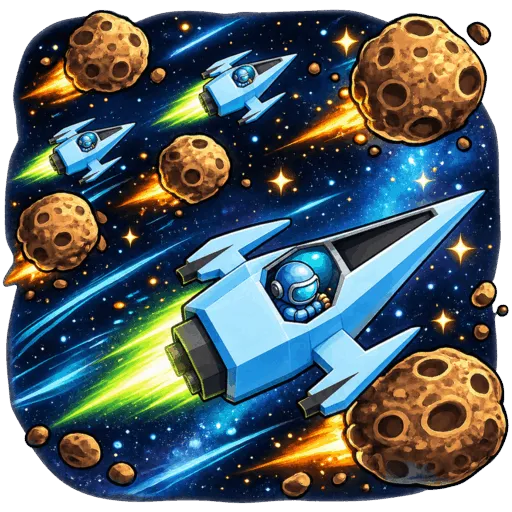
- AsterQuiz: questions inside a spaceship game, for those after a bit more action.
- Riddle: clues that gradually reveal a product, a new release or a destination.
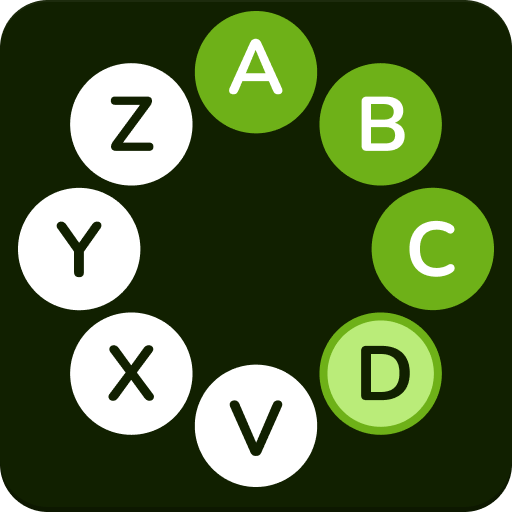
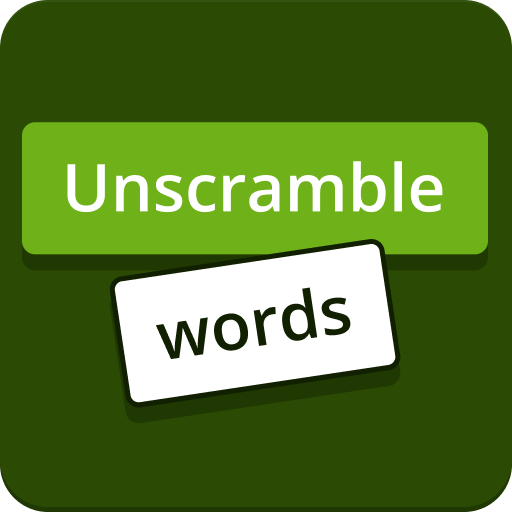
- Unscramble Letters: the name of a product or the campaign slogan, scrambled.
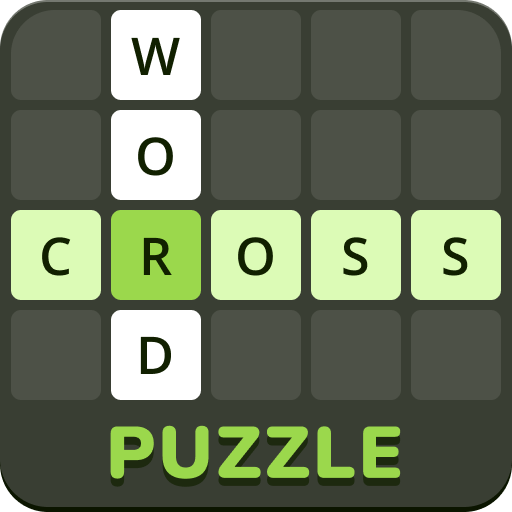
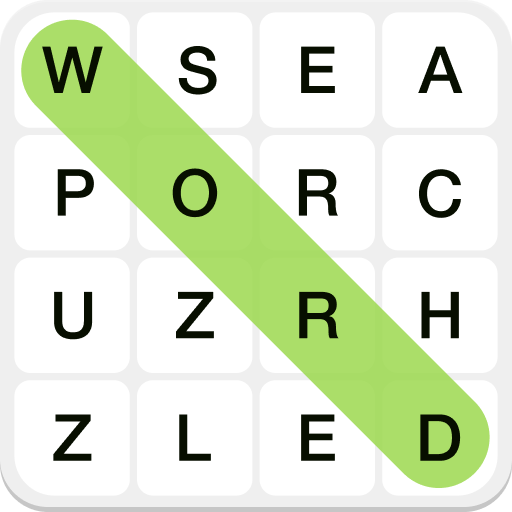
- Crossword or Word Search: with the words of your brand.
Keep it short: between 5 and 10 questions, one or two minutes of play.
Step 2. Add your branding
Under Options, turn on your logo, your colors and your font, and hide the Educaplay branding. If you're going to run more than one campaign, set it up once in Customize games and all your games will carry your brand.
Step 3. Design the start screen
Under Customize start and end screens, turn on Start screen design. Upload the campaign image, write a title and a line that explains what players can win, and add a link to your website if you want. All the details are in Customize start and end screens.
Step 4. Ask for the details
Turn on Collect player details and check the data controller, which defaults to the name on your account. Ask only for what you'll use: name and email are usually enough, and every extra field reduces submissions.
Two important decisions:
- Allow skipping: turn it off if you want a contact for every game played. Turn it on if you'd rather have more people play even if not all of them leave their details.
- Ask for permission to send marketing emails: turn it on if you're going to write to those contacts with offers afterwards. With this checkbox you'll have permission to contact those people.
The details of the form and the legal text are in Capture leads with your games.
Step 5. Decide the ending and the prize
Under End screen design:
- Message: choose By score and write one for each range. Always say thanks, also to those who fall short.
- Reward code: choose One code per score range. For example, 10% off for those who reach 100 points and 5% between 50 and 99. Create those codes in your store first: Educaplay shows them, but doesn't redeem them.
- Link: take the player to the page where they can use the code or keep going.
- Hide the result title: leave it on so only your message is shown, without an “Achieved!”, a “You Won!” or a “Game Over” above it.
If you want a single game per person, turn off Retry button.
Step 6. Publish and share
Publish the game with Unlisted visibility if only people with the link should see it, or Public if you also want it to be found in search engines. From Share you get:
- The direct link, for your newsletter, your social media and your ads.
- The QR code, for posters, packaging, screens or a booth.
- The iframe, to embed it in your website.
Before launching, play a full game yourself on your phone and check the form, the message and the code.
Step 7. Check the results
Under Reports › Collected data you see how many people saw the form, how many sent it and how many finished the game, plus the list of contacts. Export it to Excel or Google Sheets to take it to your email tool.
If you're using it at a trade show or an event
- On each attendee's phone: print the QR code large. Everyone plays on their own phone and each one gets the form.
- On a tablet at the booth: click Change user between one visitor and the next so the form comes up again. Leave the Retry button on to have that link on the end screen.
- Leaderboard on screen: leave the Top 10 ranking on and put it on a screen. It gets people playing.
Campaign ideas
Seven approaches, each with its game, its hook and its prize. Change the topic and they work for almost any industry.
Product launch: “How much do you know about…?”
- Game: a six-question Quiz whose answers are on the product page. To get them right, players have to read it.
- Prize: a launch code at 100 points, free shipping between 50 and 99, and a “try again” with a link to the product page for everyone else.
- Where: in the launch newsletter and on your social media the same day.
Teasing a new release: “Guess what's coming”
- Game: a Riddle that reveals the product clue by clue, before you announce it.
- Prize: early access or a pre-order price for those who guess it with few clues.
- Form: just the email, to let them know on release day. Your waiting list builds itself.
Seasonal campaign: holidays, sales or an anniversary
- Game: a Jigsaw Puzzle with the campaign image or a Memory with your best-selling products, against the clock.
- Prize: a bigger discount the better the score. Those who come close tend to play again.
- Where: a QR code in the shop window, in your shipments and on the receipt.
Trade show or event: the booth leaderboard
- Game: Froggy Jumps or AsterQuiz with industry questions. One-minute games that draw in passers-by.
- Prize: a gift for the best score of the day, with the Top 10 ranking on a screen.
- Form: add a dropdown with “What are you interested in?” and you'll know who to call first when you get back.
Recruiting students: the placement test
- Game: a placement Quiz for languages, office software or whatever you teach.
- Ending: a message per range with the level that fits and a different link to the recommended course.
- Form: name, email and phone, so your team can call with the proposal ready.
Loyalty at the point of sale
- Game: Unscramble Letters with the name of a dish or a product, or a Word Search with the items on the menu.
- Prize: a code for the next visit. The goal is to bring them back.
- Where: a QR code on the table, at the counter or on the bag.
Customer training: learning by playing
- Game: a Video Quiz on your product tutorial, with questions that pause the video.
- Ending: a link to the next module for those who score over 50 points, and one to rewatch the video for those who don't.
- Result: fewer support requests and customers who use the product more.
Frequently asked questions
Which plan do I need?
The Commercial plan. It includes your own branding, the start screen, the form and the prizes by score.
How many people can play?
As many as you want, even at the same time. There's no limit on players or contacts.
Is the Educaplay brand visible?
Inside the game you can replace it with yours. The game's address is still on educaplay.com.
Does Educaplay redeem the discount codes?
No. Educaplay shows the code you type. The discount is applied by your store or your system.
Do I need to know how to code or design?
No. The game is created by talking to Ray or filling in the fields, and the branding is set up with switches.
What if I need something that isn't there?
Write to Support and tell us what you need: a game type, an integration or a feature for your campaign. We'll look at it with you and reply by the next business day at the latest.